


Is RoPro Useful for Roblox Grow a Garden?
05.08.2025 - 21:04:08
Game Guides , Grow a Garden , Roblox

There are plenty of Roblox Games out there, and they're found on one convenient platform—the official Roblox website. Although it presents all of the experiences under one roof, the website could do this a bit better, which is why you need to use RoPro as well.
If you want to learn what RoPro is, then read further. Today, I will explain this popular browser extension and how it relates to Roblox GAG. At the end of the article, I will try to answer the question: Is RoPro useful for Roblox Grow a Garden?
Are you playing Roblox Games? You might need some Robux to buy item packs and whatnot. If that is the case, purchasing it from the official website is quite expensive. However, you can buy cheap Robux from our Roblox Store, which is often sold at heavily discounted prices!
What is RoPro?
RoPro is a browser extension that basically elevates the Roblox Website, granting it more features than the barebones platform. It supports major browsers, including Google Chrome, Firefox, Edge, and even other Chromium-based browsers, including Opera, Brave, and Vivaldi.
Because it is a browser extension, it isn't actually used in the game. Its features can only be utilized whenever you visit the official Roblox website.
So, is there any incentive to use it? Absolutely! Although there are plenty of features that this awesome browser extension offers, here are some of the ones that I like the most:
Best RoPro Features
Roblox Sandbox Avatar
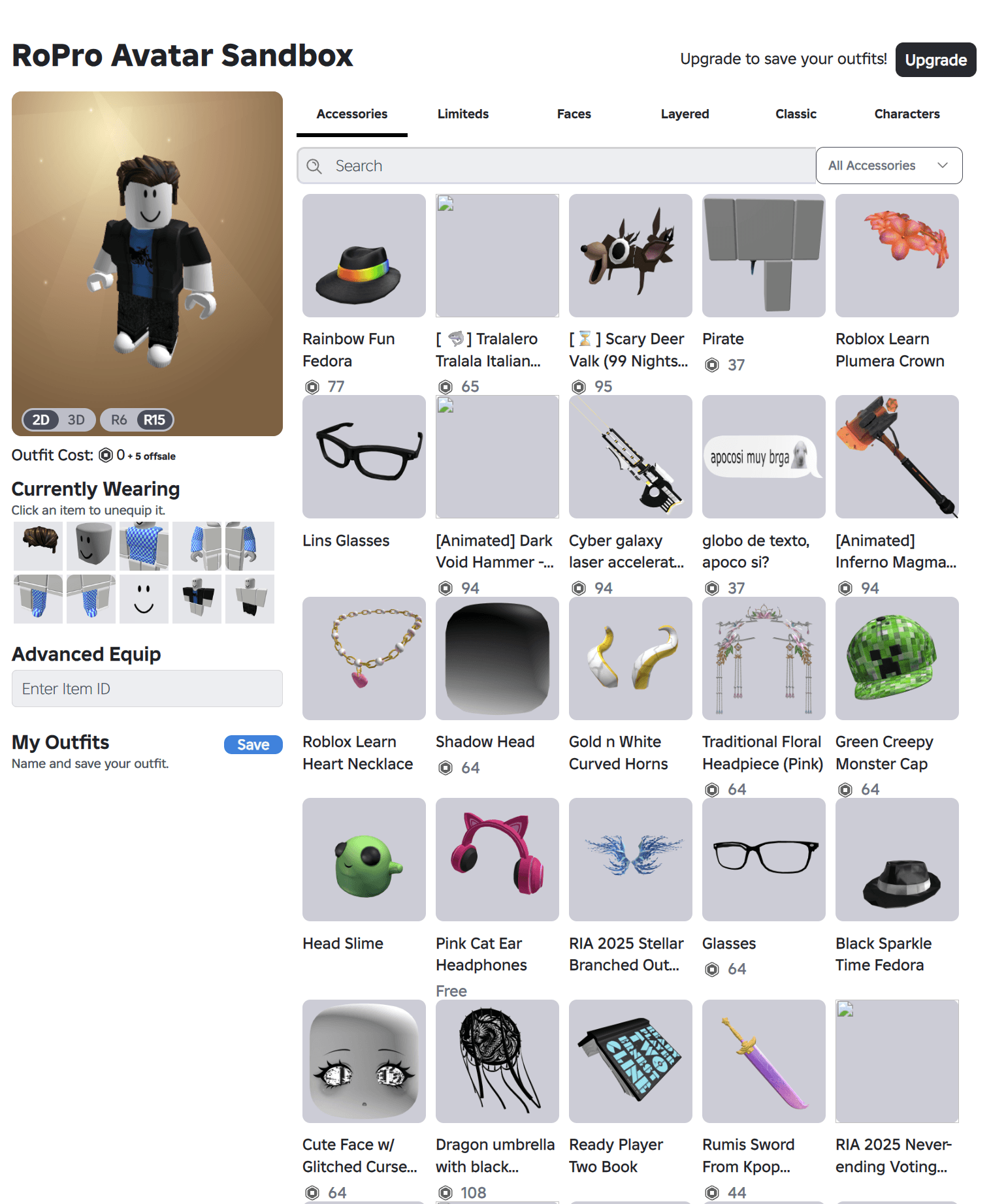
The Roblox Sandbox Avatar is arguably the biggest feature and one of the main reasons why people are using the RoPro browser extension. This feature enables you to try out different cosmetic items to see how your avatar looks when wearing them.
You can see some items are being offered for free, meaning they are actually obtainable in the game without spending Robux. Conversely, there are also items that would require you to get Robux to acquire them.
If you want to customize your Grow a Garden avatar without spending real money just yet, the Roblox Sandbox Avatar is a must-try!
Profile Themes
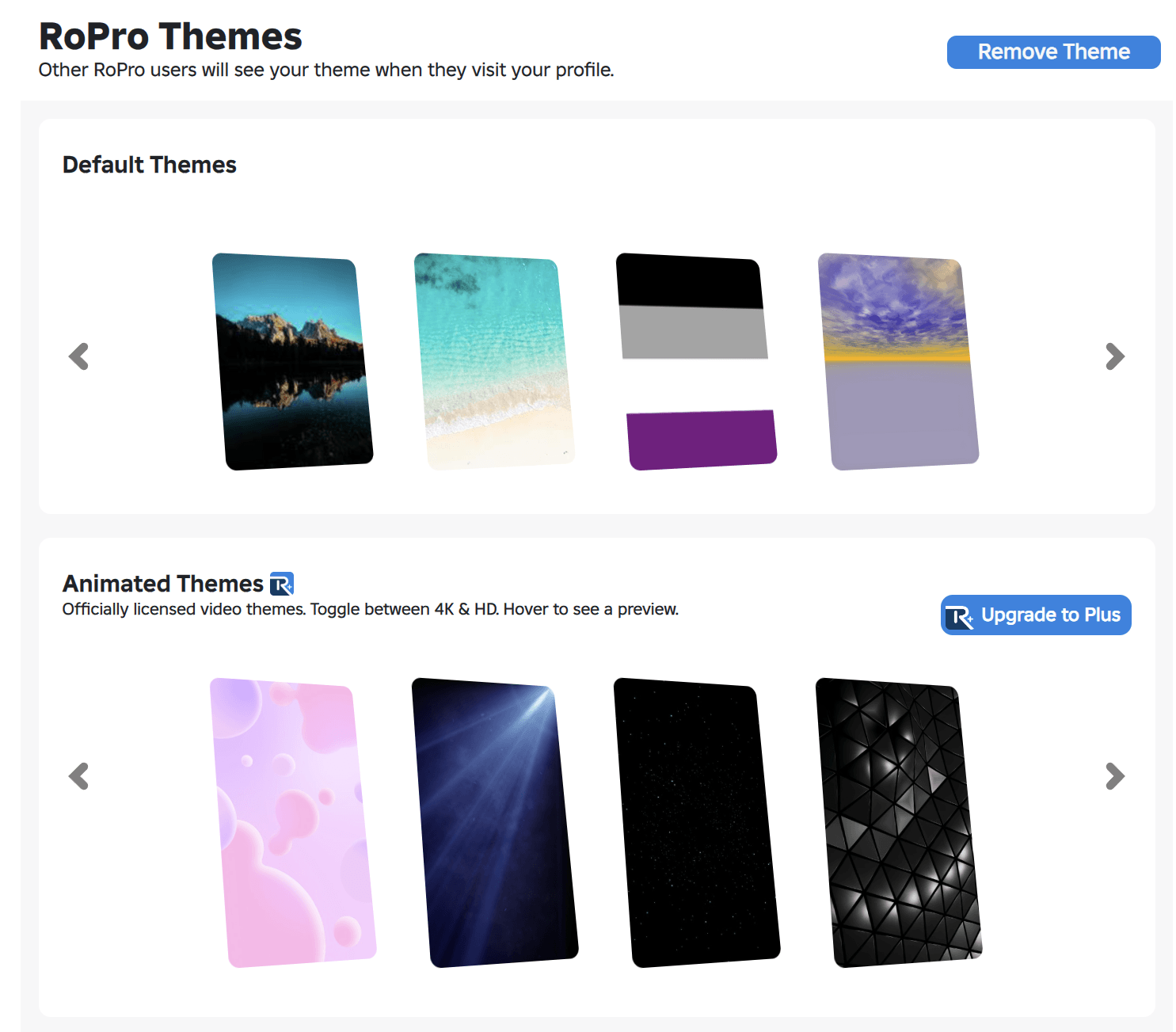
If you visit the Roblox official website on a regular basis, you might find the default theme to be too bright, especially when you are playing in a dimly lit room. The good news is that the website's theme can be altered with the help of the RoPro browser extension, of course!
When you have RoPro installed, there will be a new option on the sidebar aptly called "Themes." Simply click on it, and you will be presented with a bunch of pre-made themes, similar to the ones that you can see in the image above.
Only the default themes are available free of charge. If you like any of the animated themes, you have to subscribe to the more premium RoPro tiers to avail of them.
Personally, the default theme is just fine because all I really want is for the website to have a darker theme so that it's pleasing to the eyes. However, you probably need something more elegant, so paying a bit of money to get the premium variants is a good idea.
Keep in mind that you can only apply themes if you have verified your RoPro Account. To do that, you simply click the "Verify RoPro User" button at the top-right side of the screen when you're on the homepage, and it will guide you through the process of activation.
Quick Play Button

When you look at the official website, you can see various Roblox Experiences, such as Adopt Me, Grow a Garden, and Evade, among others. If you want to play each of the aforementioned Roblox Games, you'd have to click on them one by one, which takes a few more clicks than necessary. This is where the RoPro extension comes in handy.
With the browser extension installed, all you have to do is hover over your favorite Roblox Game, and it will conveniently show the "Play" button at the bottom right.
This feature is also expanded when you search for an experience in the search bar. Gone are the days when you have to click twice before you can play any Roblox Game you fancy!

Time Tracker
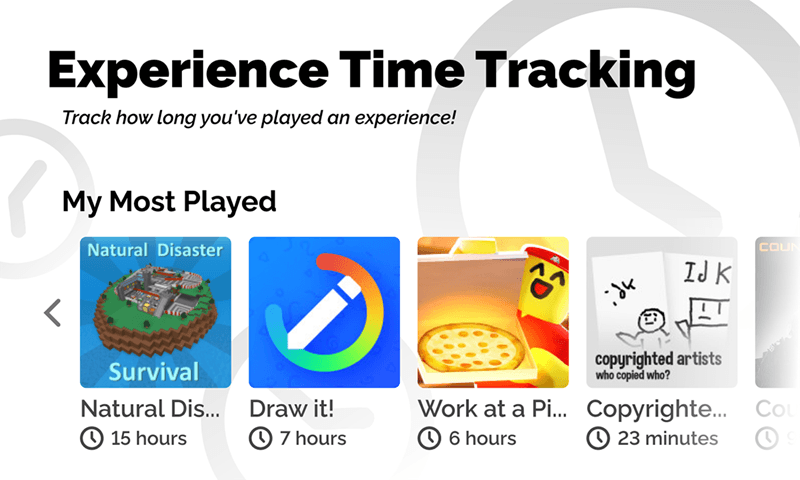
Have you ever wondered how much time you have spent playing Grow a Garden? How about Roblox Evade and Dress to Impress? Well, for a platform that offers these experiences (and then some), the official website does not tell you the exact hours you have played in these games.
Fortunately, there is a workaround: install RoPro! This handy browser extension shows you how many hours you have put into those wonderful Roblox Experiences. Maybe you have enjoyed Grow a Garden so much that you didn't know you had already spent more than 500 hours on it! Perhaps planting that Candy Blossom really is satisfying, no?
To find out your total hours played, search for "My Most Played" on the homepage.
Server Filters
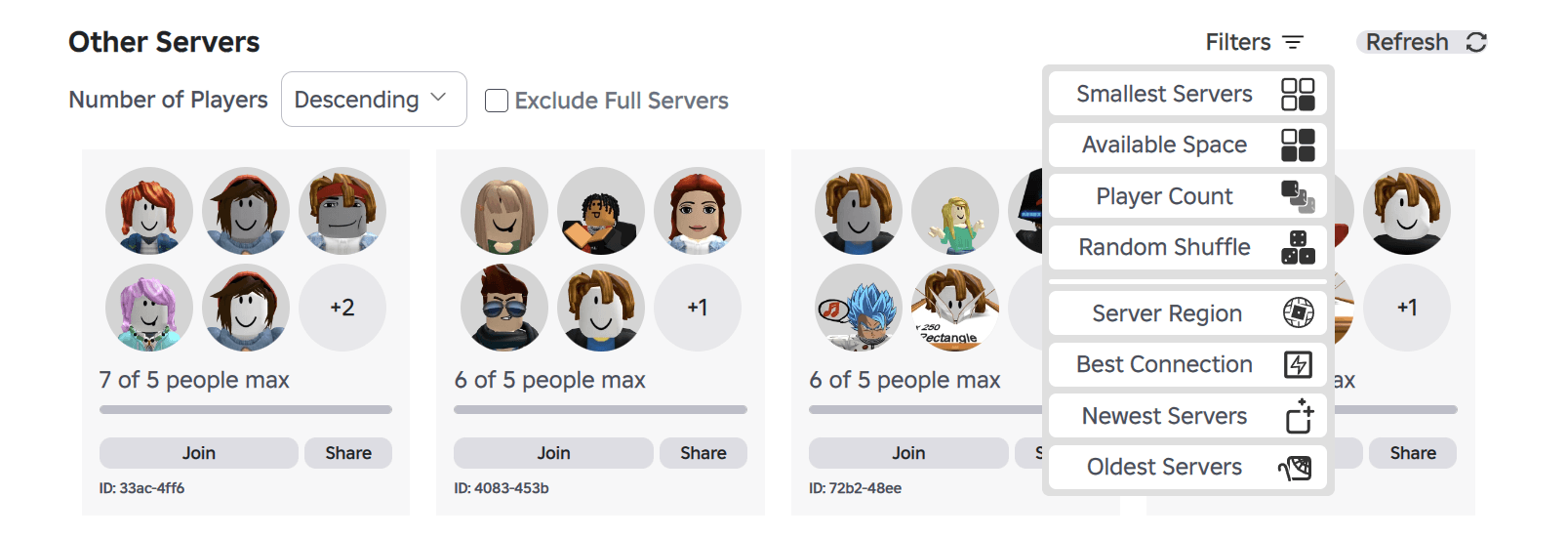
Roblox Games are very popular nowadays, so much so that they are enjoyed by kids and adults alike. With so many people enjoying the platform, it could be very hard to join a server that you actually want.
RoPro helps you with that by offering you the ability to toggle server filters. Clicking on a specific filter, such as "Best Connection," will list down the servers that provide the most optimal experience with very minimal lag (if any).
Server filters are available whenever you click on a specific game. In the example above, those are the servers that are present for Grow a Garden at the time of writing this guide.
Trading Made Easy
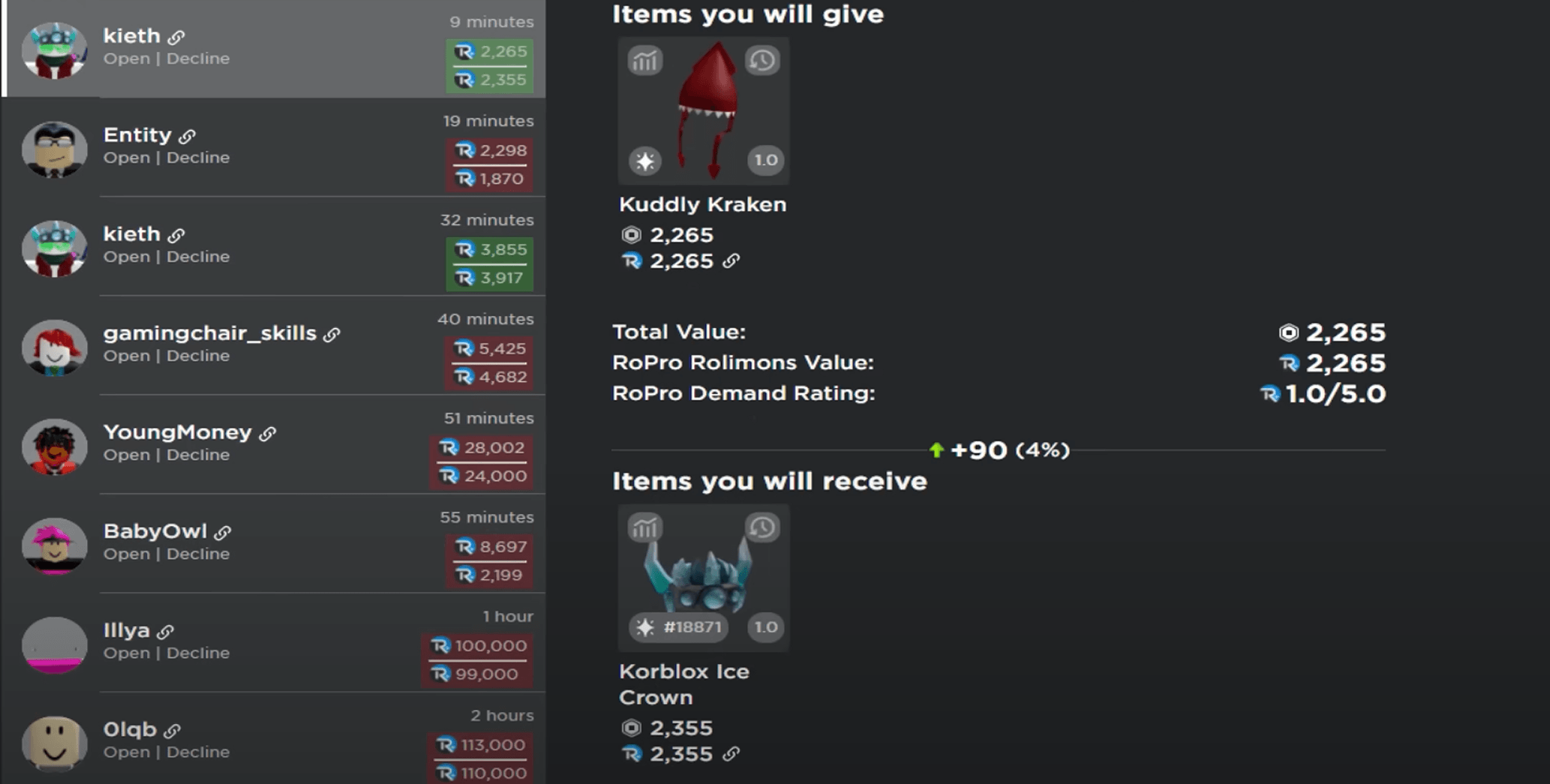
In case you don't know, you can actually trade stuff with other Roblox players. You simply click on the profile of the player you want to trade with, click on the three dots, and then select "Trade Items." Once that is done, a menu will be presented to you, and then you'll choose which items you want to barter.
After that, the player will have the choice to accept the trade or not. As to whether the trade is a good one for you or not, well, you have to be knowledgeable about the game. But, what if you're not too savvy? What should you do then?
Well, RoPro has a handy feature that tells you if a trade is a good deal or not. If you're handed out a cosmetic item that costs 1,000 Robux, the said browser extension will tell you if that's an insane value or if you are better off with other items instead.
Additionally, RoPro gives you an approximation of the traded item's value on a scale of one to five. If the demand rating is at 4 out of 5, then that means it's a pretty good deal!
Obviously, you need some Robux for trades since the items are being sold using the game's premium currency. So, if you want to purchase Robux at discounted prices, you can do that from our online store!
Rejoin Most Recent Server
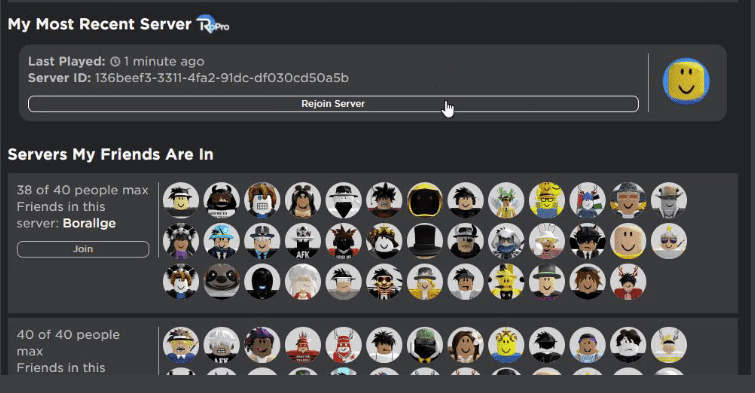
Roblox Games are played online, and because of that, you will inevitably suffer from connection issues if your ISP is acting up. If your connection drops for a few seconds, that is more than enough time for you to be booted out of the server.
To somehow alleviate this infuriating experience, you can use RoPro to connect to your most recent server so that you can get back into the action in just one click! Of course, you'd have to do it on the game's page on the browser because RoPro does not work on the game client itself.
Be that as it may, Roblox Developers should implement a similar feature on the game client soon because I think it's quite invaluable.
How to Install RoPro
So, you know what RoPro can do, right? It's an all-powerful browser extension that every Roblox player should have. However, how do you actually tap into that power?
Well, if you have experience installing browser extensions before, it is as easy as clicking on the "Add to…" button, and that's it! You can search for the RoPro extension on the Google Extensions Page or the Firefox Addons Page.
Alternatively, you can visit the official RoPro website and click on "Install on Chrome" from there. This is assuming that you have Google Chrome on your computer (which is pretty much the vast majority of internet users).
Even if you don't have Google Chrome, RoPro is supported by other popular browsers, including Firefox, Edge, Opera, Brave, Vivaldi, etc.
Once RoPro is installed, just visit the Roblox Official Website and reap the benefits!
How Does RoPro Benefit Grow a Garden Users?
RoPro provides a couple of substantial benefits for Grow a Garden players such as yourself. First, RoPro's "Sandbox Avatar" feature lets you try out cosmetic items before purchasing them with your hard-earned Robux.
Second, you can utilize RoPro's server filters to find servers with the lowest player counts or servers that are relatively old (and stable). Roblox GAG veterans actually prefer the latter because of how stable those servers are relative to the newer ones.
If you are going to indulge in RoPro's server filters, just know that it's proper etiquette to wait for at least five to 10 minutes before hopping to another server. This is so that the system won't deem you as a cheater or hacker.
Should You Use RoPro When Playing Roblox Games?
After learning what RoPro is capable of, should you use it when playing Roblox Games? Yes, absolutely! This powerful extension provides a whole host of features not normally offered by the official Roblox website, such as server filters, quick play buttons, and the ability to try out different cosmetic items before purchase.
If you are worried that you may get banned from using it, don't be! RoPro is just a browser extension that does not alter any of the Roblox Games out there. It just gives you features on the website itself—nothing more, nothing less.
Don't forget to drop by our Grow a Garden Store, where we not only offer cheap Robux, but also rare seeds and pets like the Candy Blossom and Raccoon!