


D2R Loot Filter Guide: How to Set Up and Customize Your Own Loot Filter
08.03.2026 - 10:24:55
Diablo 2: Resurrected , Game Guides , Gameplay Guides

Blizzard was cooking in Diablo's 25th Anniversary Event, where the company delivered a feature that had been highly requested by the community for a very long time. I am talking about the loot filter in Diablo II: Resurrected, of course!
In this guide, I will go over the things that you need to know about the D2R loot filter so that you can set it up according to your preferences.
What is the New Diablo 2 Loot Filter System?
A loot filter is a feature that lets you show or hide specific items on the ground. In Diablo II: Resurrected, the loot filter is responsible for filtering D2R items, including equipment, accessories, and runes, among many others.
This has been a long-requested feature in the game, especially because you could be bombarded with a ton of different items at the same time in the endgame.
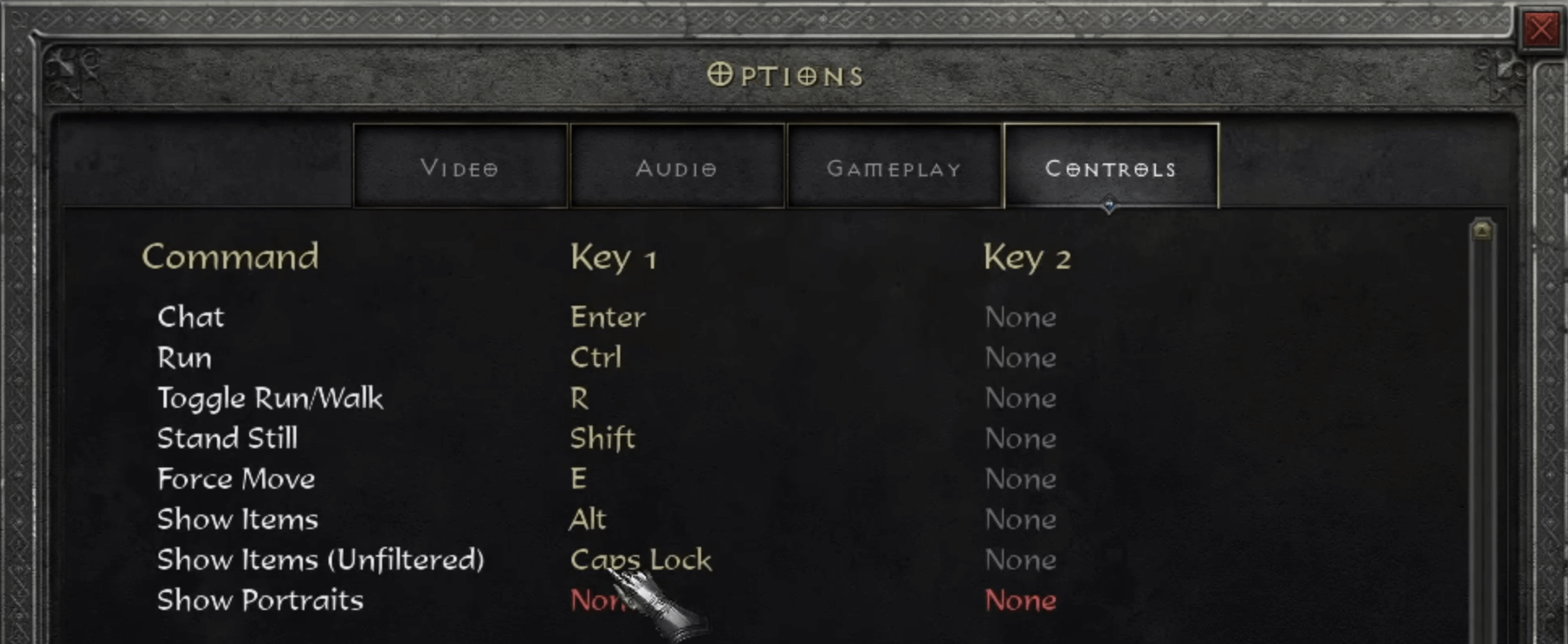
It is important to note that when you have a loot filter active, any item that is filtered out will not be shown, even if you hover over it. This also means that you cannot pick that particular item off the ground. Fortunately, there is an easy way to temporarily disable that by clicking on the hotkey for "Show Items (Unfiltered)."
D2R Loot Filter: Basics
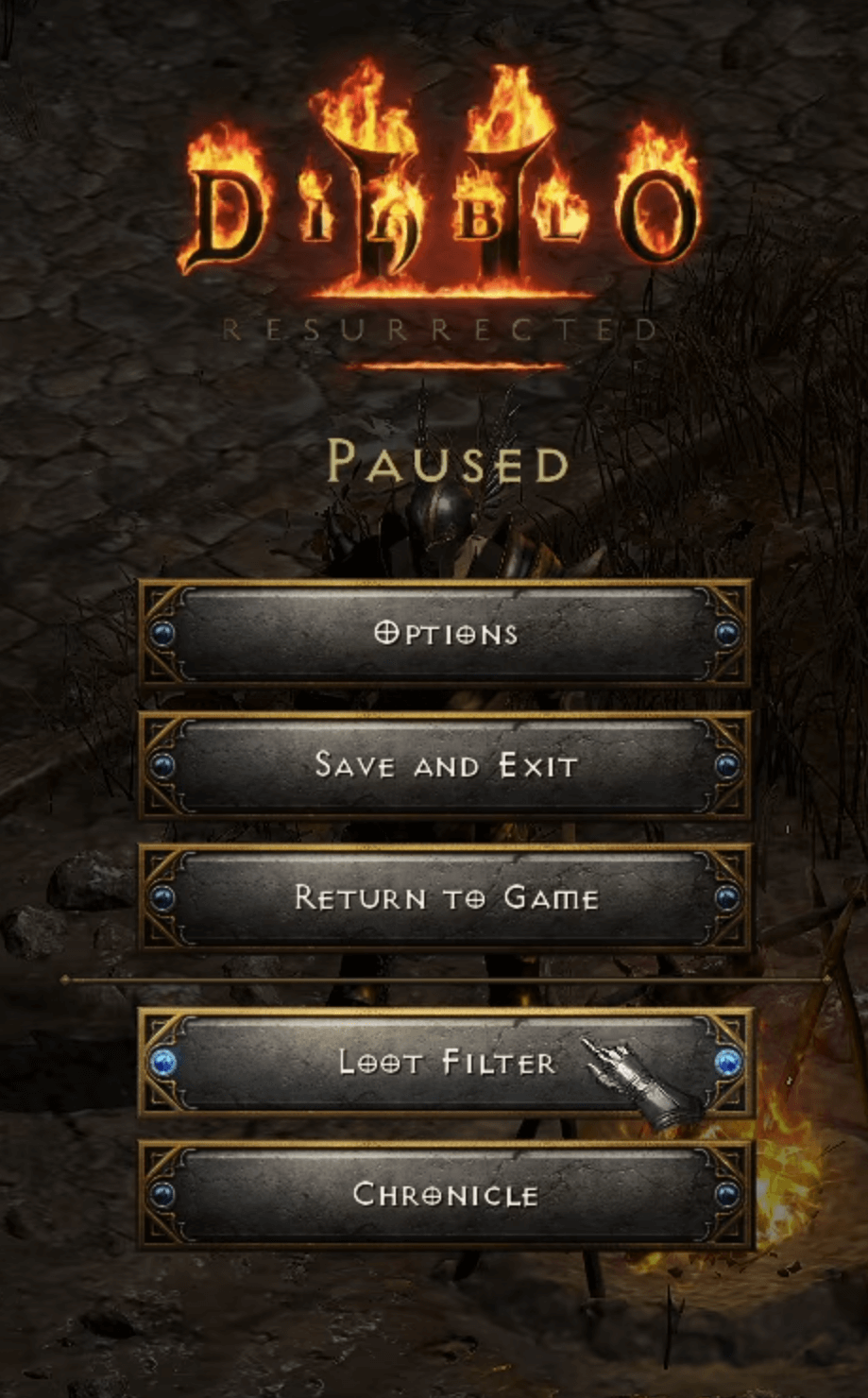
To access the loot filter, press the ESC key on the PC or the menu button on consoles. Next, go to "Loot Filter" to bring up its user interface.
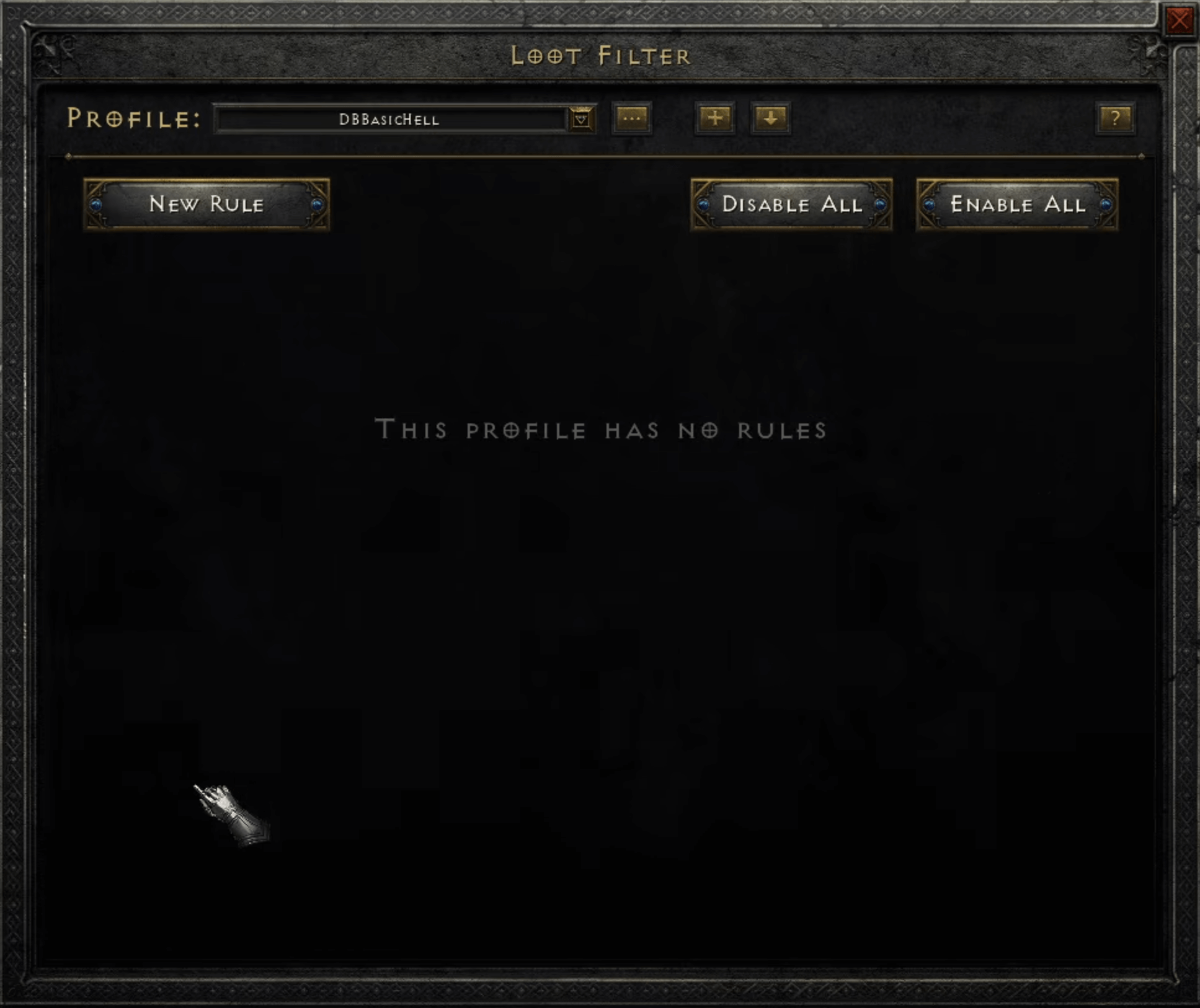
Let's dissect the different icons that you can see on the screen. Here is a brief explainer:
- Profile Drop-Down: Allows you to choose the profiles you have created. Imported profiles from other players will be shown here as well.
- Three Dots: Lets you rename, share, or delete a loot filter. The "Share" option allows you to export your current profile, which gives you a code that you can share with other people.
- Plus (+) Icon: Add or create a new profile.
- Down Arrow: Click to import profiles from other players.
How to Create a Profile
If you want to make your own loot filter from scratch, click on the plus (+) icon. You will then be asked to input a name for it. I advise you to give it a more descriptive name so that it will be easier to remember what that specific profile actually does.
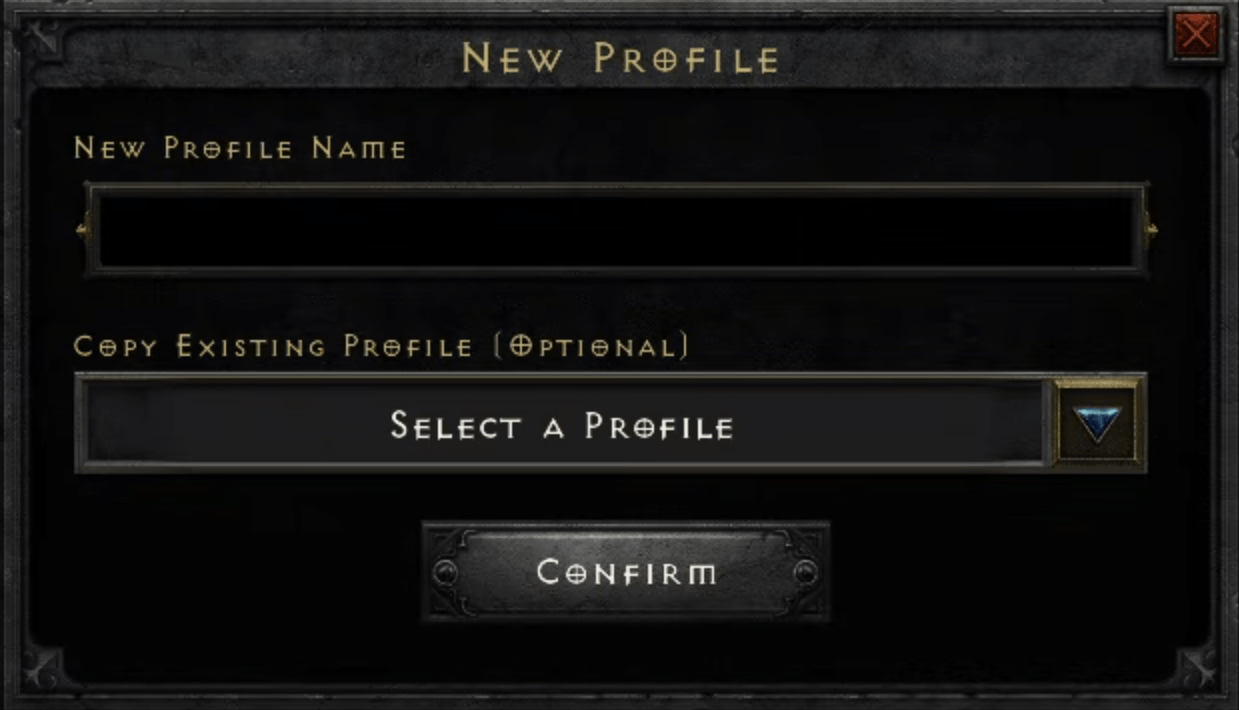
The "Copy Existing Profile" section is just what it says. This option is best used if you simply want to add a few rules from a pre-existing profile.
Setting the Rules
Once you have created a profile, the next thing that you need to do is to set some rules for your loot filter. To do that, click on the "New Rule" button. After that, you will be presented with this screen:
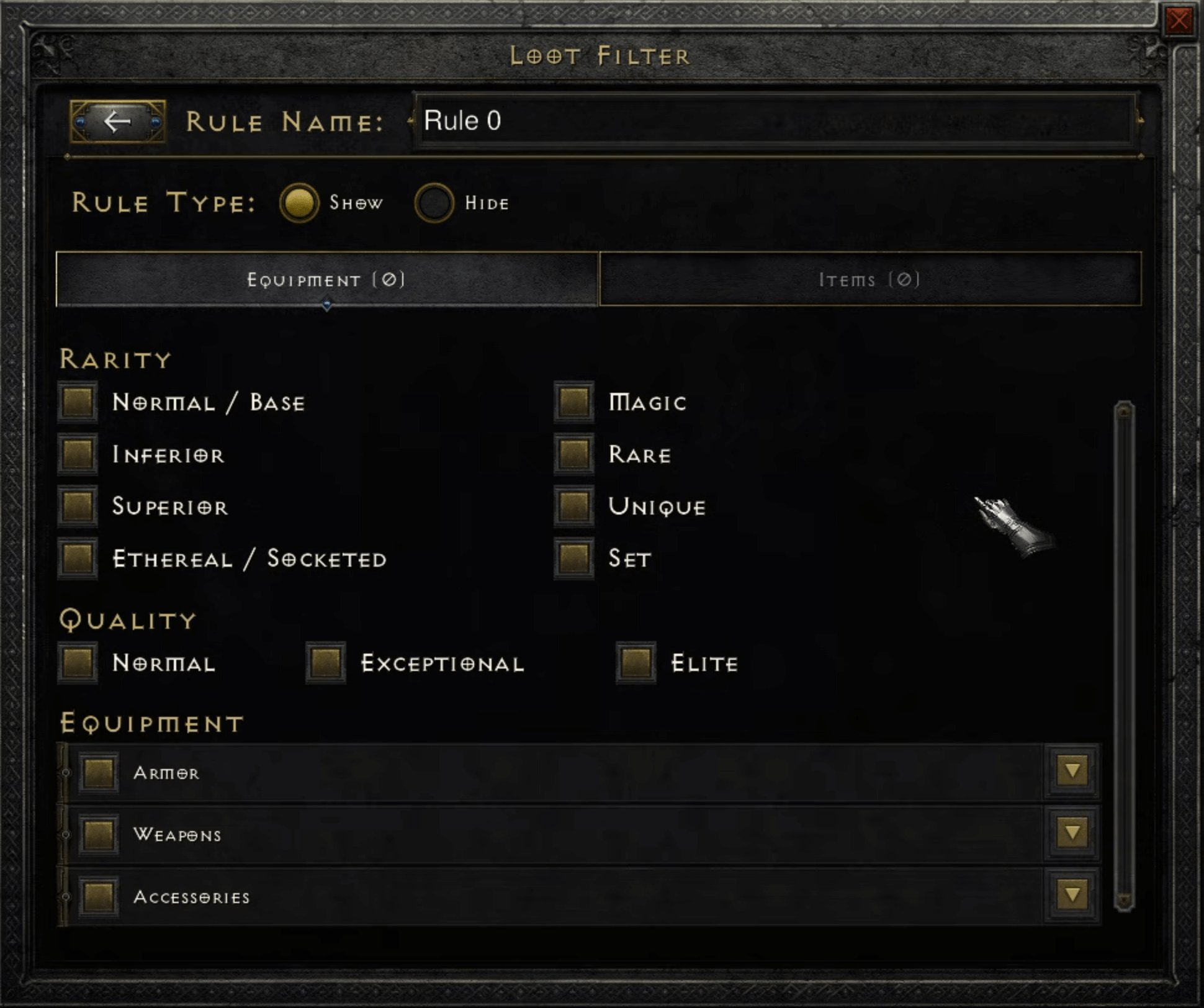
The "Rule Type" is one of the most important things in this section. This lets you influence whether the rules you are going to set are for showing items or hiding them.
Under the "Rarity" section, you will be able to set specific item rarities to be shown or hidden on the ground. You can also specify only unique or set items to be highlighted if that is your preference.
The "Quality" section is for the item base types. If you have selected the "Show" rule type, put a check mark on each one. On the other hand, uncheck each entry if you've chosen the "Hide" rule type.
How about the "Equipment" section? Well, this is where the fun begins! The equipment section shows you the different categories of items that can be filtered out with the loot filter.
Now, if you want to tinker with your loot filter, simply check or uncheck whatever it is that you want to see. Whether you should put a tick on the box beside each entry or not depends entirely on the rule type you have set. So, if you have chosen the "Show" rule type, a checkmark beside each entry will show that item on the ground. Conversely, setting the "Hide" rule type will keep checked entries hidden from sight.
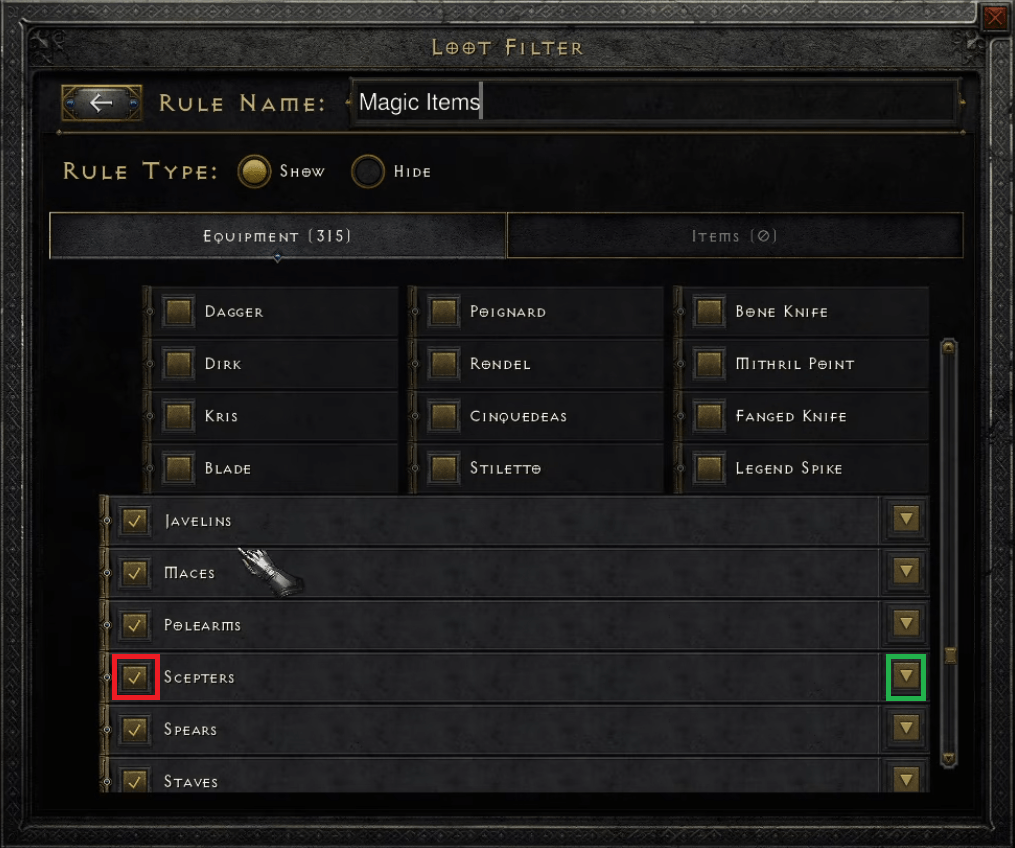
Checkmark (Red), Drop-down (Green)
Items
The "Items" tab shows you the miscellaneous items that you can pick up. This includes:
- Gold: Hide or show piles of gold based on the amount you have set
- Potions: Pretty much every potion in the game. Only highlight Rejuvenation Potions in the endgame.
- Keys: These are regular keys. It's up to you whether you want to skip them or not.
- Scrolls and Tomes: Town Portal and Identify Scrolls/Tomes. Check them in Normal Difficulty and then turn them off in Nightmare and Hell.
- Ammunition: Here lies your arrows and bolts. Skip for the vast majority of classes other than Bowazons (Bow Amazon).
- Uber Materials: Essential for endgame farming. Check all.
- Terrorize Tokens: These are the new Worldstone Shards that can turn specific areas into Terror Zones. Check all.
- Essence/Token of Absolution: Used for resetting your character's stats and skill points. Check all.
- Runes: All D2R runes that are available in the game.
- Gems: All gems available in the game. Check all at first. Stick with Flawless and Perfect Gems in the endgame.
Import Profile
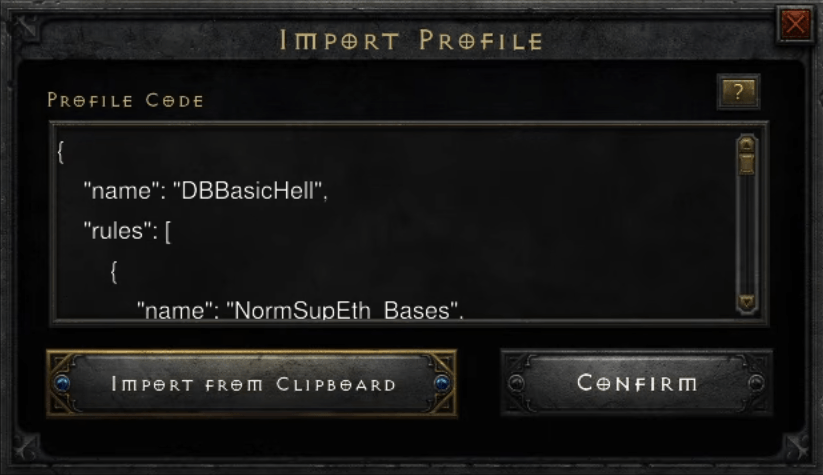
The way the loot filter in Diablo II: Resurrected is constructed, you have to manually check or uncheck things based on what items you want to see while farming.
Thankfully, you can import profiles created by other players easily. D2R loot filters are ubiquitous at this point, especially since Diablo II: Resurrected – Reign of the Warlock has been out for a while.
To import a profile, click on the arrow pointing downward in the main loot filter UI, then paste the entire code by clicking on "Import from Clipboard." After that, click "Confirm" to finish the process.
Export Profile
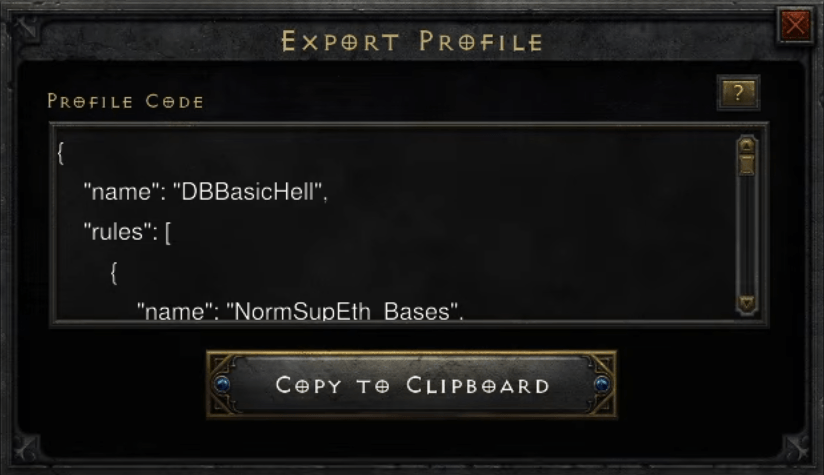
If you spent the time fine-tuning your profile and want to share it with the community, click on the three dots next to the profile drop-down menu and choose "Share." You will be presented with a profile code that must be copied exactly as it is, which can easily be done by pressing "Copy to Clipboard."
D2R Loot Filter: What Items to Show or Hide
The purpose of the loot filter in Diablo II: Resurrected is to reduce screen clutter, leaving only the items you really want to pick up.
You can find what items you must keep for endgame farming below. Make sure the rule type is set to "Show," as recommended.
Items to Keep: Armor
Helmets
- Death Mask
- Winged Helm
- Grand Crown
- Demonhead
- Bone Visage
- Spired Helm
- Corona
Circlets
- Select All
Armor
- Full Plate Mail
- Gothic Plate
- Dusk Shroud
- Wyrmhide
- Mage Plate
- Sharktooth Armor
- Chaos Armor
- Ornate Plate
- Scarab Husk
- Wire Fleece
- Balrog Skin
- Kraken Shell
- Archon Plate
- Sacred Armor
Shields
- Monarch
- Grim Shield
- Ward
- Aegis
- Pavise
- Dragon Shield
Gloves
- Demonhide Gloves
- Sharkskin Gloves
- Vampirebone Gloves
- Vambraces
- Ogre Gauntlets
Boots
- Wyrmhide Boots
Belts
- Vampirefang Belt
- Mithril Coil
- Sharskin Belt
- Demonhide Sash
Barbarian
- Select All
Druid
- Select All
Paladin
- Sacred Targe
- Sacred Rondache
- Kurast Shield
- Zakarum Shield
- Vortex Shield
- Akaran Targe
- Akaran Rondache
Necromancer
- Minion Skull
- Bloodlord Skull
- Overseer Skull
- Hellspawn Skull
- Succubus Skull
Warlock
- Codex
- Grimoire
- Occult Tome
- Occult Codex
- Blasphemous Grimoire
- Blasphemous Compendium
Items to Keep: Weapons
Axes
- Small Crescent
- Ettin Axe
- Berserker Axe
Daggers
- Fanged Knife
- Cinquedas
- Kris
- Blade
- Stiletto
Javelins
- Nothing
Maces
- Scourge
- Legendary Mallet
- Thunder Maul
Polearms
- Thresher
- Giant Thresher
- Colossus Voulge
- Cryptic Axe
Scepters
- Caduceus
- Divine Scepter
- War Scepter
Spears
- War Pike
Staves
- Archon Staff
- Rune Staff
Swords
- Phase Blade
- Balrog Blade
- Colossus Sword
- Colossus Blade
- Crystal Sword
- Broad Sword
Wands
- Lich Wand
- Ghost Wand
- Burnt Wand
Amazon
- Grand Matron Bow
- Matriarchal Bow
- Maiden Javelin
- Ceremonial Javelin
- Matriarchal Javelin
Assassin
- Runic Talons
- Greater Talons
Sorceress
- Check all
Items to Keep: Accessories
- Check all (charms, rings, amulets, jewels)
Items to Keep: Runes
- Jah Rune
- Ber Rune
- Lo Rune
- Sur Rune
- Ohm Rune
- Vex Rune
- Zod Rune
- Cham Rune
- Ist Rune
D2R Loot Filter Tips
- I recommend choosing the "Show" rule type, as it allows you to fine-tune which items appear on the ground, saving time in the long run.
- If using the "Show" rule type and unsure what to uncheck, uncheck all item base types in the first column ("Normal" bases). The second column is for "Exceptional" items, and the third is for "Elite" items.
- Create loot filter profiles for specific scenarios. At minimum, make four profiles: general farming, Uber bossing, terror zones, and unique items/sets.
- Do not uncheck anything in the "Helmets" tab. Helmets with "+ to Skills" are valuable for trading or personal use at any stage of the game.
- Avoid the "Hide" rule type, as hiding all magic items could prevent small or grand charms from appearing, which are always valuable.
- Bind "Show Items" and "Show Items (Unfiltered)" to your preferred hotkeys for convenience.